How to use the test targets
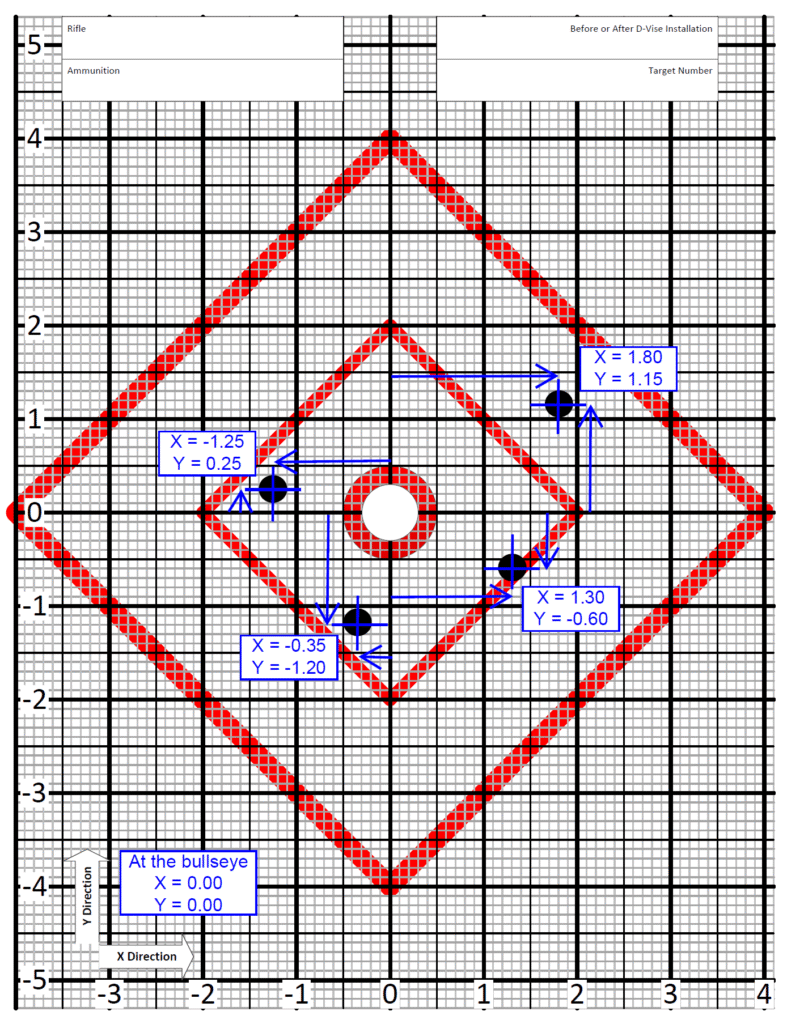
This picture shows the test target with 4 different shots marked on it to demonstrate how to read the shot location data from the target. This does not represent what you should expect to see on a target. This is only for the purpose of showing how to read the shot location data. The 4 locations were chosen to demonstrate what positive and negative location coordinates look like.
You will see numbers along the heavy grid lines on the left and across the bottom. The horizontal numbers are the “X” direction and the vertical numbers are “Y” direction. The center location (bullseye) is X=0.00, Y=0.00. Left of center, X is negative. Right of center, X is positive. Below center, Y is negative. Above center, Y is positive.
The heavy black gridlines are spaced 1 inch apart. The thinner black gridlines are spaced 0.50 inch apart. The grey gridlines are spaced 0.10 inch apart. As you will see, it is fairly simple to estimate the shot location to within 1/2 of the spacing of the grey gridlines, or 0.05 inch. A location to within 0.05 inch is plenty precise for our purposes and trying to estimate shot location more precisely won’t have any meaningful, and probably not any numeric, effect on the results.
We recommend firing only 5 shots maximum, maybe fewer, on a single target to keep from having shots hitting the same location and being difficult to measure the locations accurately. The paper to print a target is cheap. Bullets and errors are expensive. Measure the locations for each shot on multiple targets. The spreadsheet will combine all the shots and overlay them for the analysis.
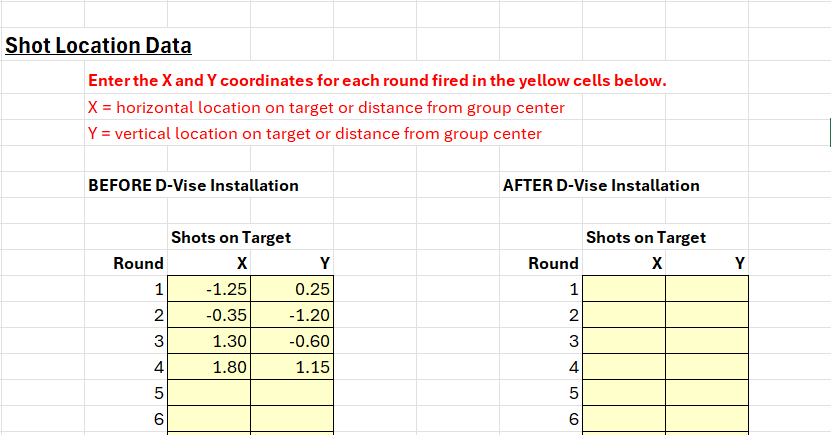
The shot location data can now be entered into the Test Firing Analysis spreadsheet. See either Using Google Sheets or Using Microsoft Excel for details on the spreadsheet. The Google Sheets version is available to everyone without any additional software. The Microsoft Excel version is also available to everyone but requires access to Microsoft Excel.
Let’s assume these 4 shots were fired before the D-Vise is installed. The coordinates would be entered as shown below. Note that it does not matter what order that they are entered in but it is critical that each X and each Y value are kept together.
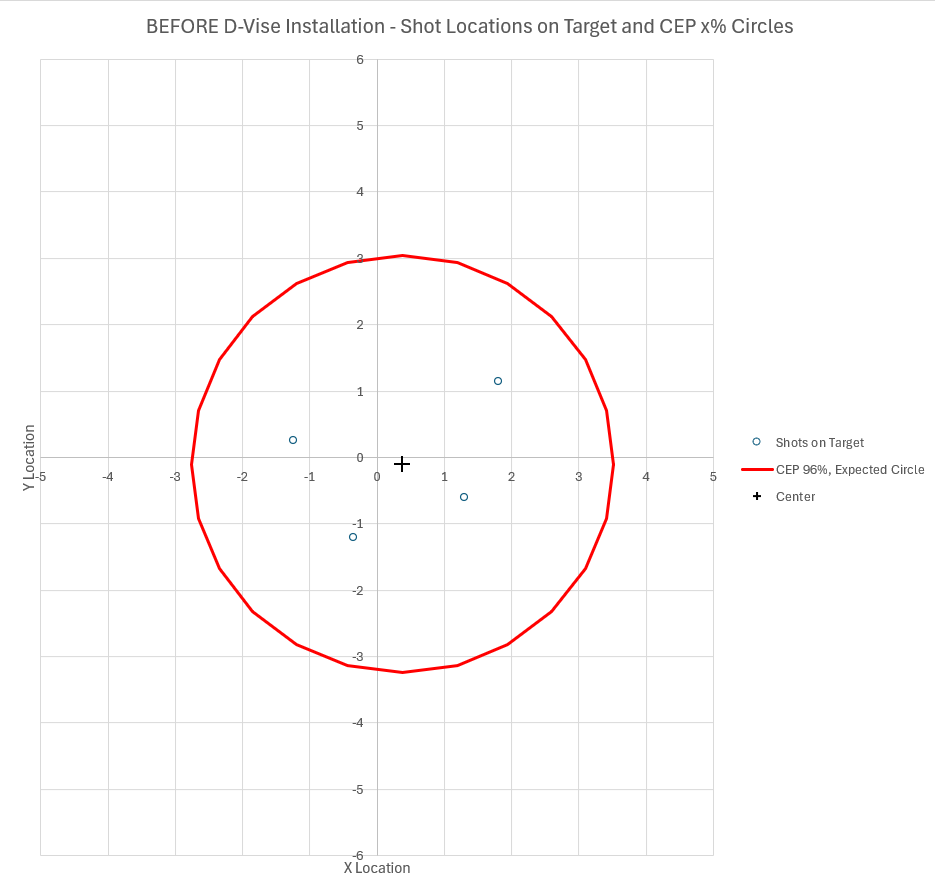
You can now compare the shot locations shown on the targets in the “simple summary” and “detailed summary” tabs of the spreadsheet. Each shot is shown as a small blue circle on the target. The shots should show up in the same locations as on the actual target. If they do not, something was either measured or entered incorrectly.
We will discuss the purpose of the red circle around the shots later.